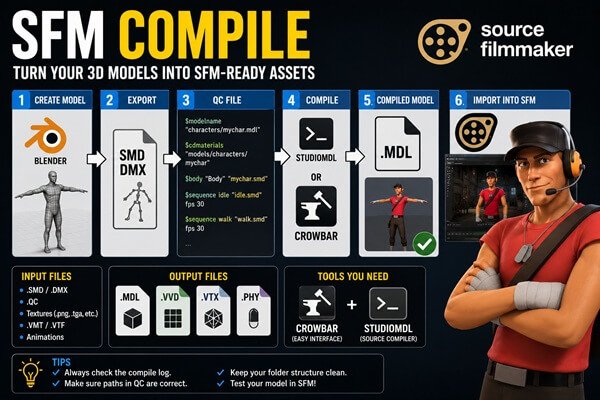
If you have ever tried to bring a custom character, prop, or other 3D asset into Source Filmmaker (SFM), you may have come across the words SFM Compile. At first, the term sounds like something meant for programmers. In practice, it is much easier to understand once you see where it fits into the SFM workflow.
The important thing to know is that “SFM Compile” can mean two related but different things online. In the Source Filmmaker community, it most commonly refers to compiling custom models and other Source assets into formats that SFM can actually use. Some websites, however, use the phrase to describe the final rendering or exporting of an SFM animation. The search results for the term reflect this difference, which can be confusing for beginners.
For custom model work, compilation is the technical bridge between your source files and the Source engine. A model made in Blender, Maya, or another 3D application needs to be prepared and compiled before Source Filmmaker can properly load it as a Source model. The traditional workflow involves source model data such as SMD or DMX, a QC script, and Valve’s StudioMDL compiler or a graphical tool such as Crowbar.
This guide explains SFM Compile from the ground up, including what the term means, why compilation is necessary, which files are involved, how the process works, common errors, textures, QC files, Crowbar, StudioMDL, and the difference between compiling an asset and rendering a finished movie.
What Is SFM Compile?
In simple terms, SFM Compile is the process of preparing Source Filmmaker assets so that the Source engine can use them.
Imagine you create a character in Blender.
Blender understands its own project format and can also export formats such as FBX, OBJ, SMD, or DMX depending on the workflow. Source Filmmaker does not simply open your Blender project and understand everything automatically.
The asset has to pass through a Source-specific pipeline.
For model compilation, that usually means taking model data and instructions from a QC file and processing them through a Source model compiler. The result is a compiled Source model, normally centered around an .mdl file with supporting files such as .vvd and .vtx; a .phy file may also be generated when physics data is included.
That is why it is useful to think of compilation as a translation step.
Your 3D software creates the source material.
The compiler translates that material into something the Source engine understands.
SFM then loads the compiled asset.
This is also why simply having a beautiful model in Blender does not guarantee that it will work correctly in Source Filmmaker.
Why Do SFM Models Need to Be Compiled?
Source Filmmaker is built around Valve’s Source technology and its own asset structure.
A modern 3D application can work directly with its project files and many common interchange formats. Source-based workflows, however, rely on specific compiled formats and scripts.
When you compile a model, you’re not just changing its file extension.
The compiler needs to understand things such as:
- What the model is called
- Where the model should be placed
- Which mesh files belong to it
- Which materials it uses
- Which animations it contains
- How its bones are arranged
- Which sequences are available
- Whether additional model features are required
The QC file provides many of these instructions.
That is why a QC file is such an important part of the SFM compilation process. Community documentation and SFM users commonly describe it as the script that tells StudioMDL how to build the final model.
Without the correct instructions, the compiler doesn’t know how your source files should be assembled.
SFM Compile Is Not Always the Same Thing as Rendering
This is one of the biggest points of confusion when researching SFM Compile.
Some websites describe compiling as the process of converting models into Source-compatible files.
Other pages use “compile” informally to describe exporting a completed SFM project into a video or image sequence.
These are not exactly the same operation.
Asset compilation
This happens before or during the process of getting custom assets into SFM.
For example:
SMD/DMX + QC → compiled Source model
Animation rendering
This happens after you have created your scene.
For example:
SFM scene → rendered frames or movie
Keeping these two meanings separate makes many SFM tutorials much easier to understand.
If someone says, “I need to compile my model,” they probably mean model compilation.
If someone says, “I need to compile my animation,” they may actually mean rendering or exporting it.
The Basic SFM Compile Workflow
The overall model workflow can look complicated when you first see all the file extensions, but the basic idea is straightforward.
A typical custom-model pipeline looks something like this:
3D model → export → QC file → StudioMDL/Crowbar → compiled model → SFM
Textures have their own related workflow.
A simplified version is:
Image texture → VTF → VMT → Source material
The model and material systems work together, but they are not exactly the same process.
This distinction is important because a model can compile successfully while still showing the famous purple-and-black checkerboard texture.
That usually means the model itself exists, but SFM cannot find or correctly load one or more materials.
The Main Files You Will Encounter
If you’re new to SFM compilation, the file extensions can look intimidating.
Once you know what they do, they become much easier to recognize.
SMD
SMD is a Source model data format commonly used in older Source workflows.
Depending on the file, it can contain information related to geometry, bones or animation.
It is not necessarily the final playable or usable Source model.
Instead, it can be one of the inputs used by the compiler.
DMX
DMX is another format used in Source workflows.
It can contain model and animation-related information and is commonly used in modern SFM asset pipelines.
Both SMD and DMX can serve as source data for compilation, depending on the asset and workflow.
QC
The QC file is one of the most important files in the process.
It is essentially a set of instructions for StudioMDL.
It can specify the model’s output name, source meshes, materials, sequences and other settings.
A simplified example might look like this:
$modelname "myfolder/mymodel.mdl"
$cdmaterials "models/myfolder"
$body "Body" "mymodel.smd"
$sequence idle "idle.smd" fps 30
This isn’t a universal QC file. Different models require different commands and structures.
The important idea is that the QC tells the compiler what to build.
MDL
The .mdl file is the primary compiled model file.
It contains important information that allows the Source engine to recognize and use the model.
However, you should not assume that the MDL works by itself.
A compiled Source model normally depends on supporting files.
VVD
The .vvd file contains vertex-related model data.
It works alongside the other compiled model files.
VTX
VTX files contain rendering-related information used by the Source engine.
Depending on the Source branch and compilation process, you may see different VTX variants.
PHY
A .phy file can contain physics collision information when physics data is included in the compilation.
For SFM specifically, the importance of physics depends on what you’re trying to create. Some models used purely for animation don’t need the same physics setup that a game asset might require.
What Is StudioMDL?
StudioMDL is the Source model compiler responsible for turning the instructions in a QC file and its referenced source assets into compiled Source model data.
It is one of the central pieces of the traditional Source model compilation workflow.
You can run StudioMDL through the command line, although beginners often prefer a graphical interface.
The basic idea is simple:
QC file → StudioMDL → compiled model files
StudioMDL reads the QC file, finds the referenced model and animation files, processes them and creates the output expected by the Source engine.
For someone learning SFM, understanding what StudioMDL does is more important than memorizing every command.
Also read: Trainline App Not Working: Complete Guide to Fix Login, Booking, Payment, and Ticket Issues
What Is Crowbar?
If StudioMDL is the engine doing the actual compilation, Crowbar is a popular graphical tool that makes Source model workflows easier to manage.
Instead of opening a command prompt and manually entering compiler commands, you can use Crowbar’s interface to select your QC file, configure the relevant game and start the compile.
It also provides a compile log, which is extremely useful when something goes wrong.
Many SFM creators use Crowbar because it makes the process less intimidating.
Community discussions around SFM repeatedly recommend checking Crowbar’s compile output when a model fails to compile.
The important point is that Crowbar doesn’t magically remove the Source compilation process.
It provides a more convenient way of interacting with it.
SFM Compile Step by Step
Let’s look at the process from a beginner’s perspective.
Step 1: Prepare Your Model
The first stage happens in your 3D application.
You might use:
- Blender
- Maya
- 3ds Max
- Another compatible modeling program
At this stage, check the basics.
Your model should have:
- Correct geometry
- Correct scale
- UVs
- Appropriate materials
- A suitable skeleton if it is animated
- Correct bone weights if it is a character
- Proper transforms
Do not wait until after compilation to discover that the model itself is incorrectly built.
Fixing problems in Blender or your modeling software is usually much easier than trying to repair a compiled asset.
Step 2: Export to SMD or DMX
Once the model is ready, export it using a Source-compatible workflow.
The exact process depends on your 3D software and the export tools you use.
Blender is particularly popular among hobbyist Source creators because it is free and has Source-oriented export tools.
The result may be an SMD or DMX file that the Source compiler can process.
Remember:
Exporting is not the same as compiling.
You have created source data, but you have not necessarily created the final Source model yet.
Step 3: Prepare the Materials
Your model also needs its materials to be set up correctly.
Source materials commonly use:
.vtftexture files.vmtmaterial files
The VTF contains the texture data.
The VMT tells Source how that texture should be used and shaded.
This is a separate part of the pipeline from compiling the model itself.
Some workflows use tools such as VTFEdit to prepare Source textures. Current SFM compilation guides continue to describe VTF/VMT preparation as a separate step from model compilation.
Step 4: Write the QC File
This is where many beginners become nervous.
A QC file is just a text file.
You can create one with a basic text editor.
It contains commands that tell the compiler how your model should be assembled.
For example:
$modelname "custom/mycharacter.mdl"
$cdmaterials "models/custom"
$body "Body" "mycharacter.smd"
$sequence "idle" "idle.smd" fps 30
The exact commands depend on the model.
A character with facial flexes, multiple bodygroups, several animations and other features may need a much more complicated QC file.
The important thing is not to copy a random QC from another model and assume it will work.
The file paths must match your actual files.
Step 5: Check Your Paths
File paths are responsible for a huge number of compilation problems.
Suppose your QC says:
$body "Body" "character.smd"but the actual file is called:
character_reference.smdThe compiler cannot find it.
The compile will fail.
The same problem can happen with:
- Texture paths
- Animation files
- Material folders
- Model folders
- Include files
- Physics meshes
An old SFM community troubleshooting discussion demonstrates exactly this type of problem: the compiler could not find a DMX file referenced by the QC, and correcting the filename resolved the model compilation issue.
This is why checking filenames carefully is one of the simplest and most effective SFM troubleshooting habits.
Step 6: Compile With Crowbar or StudioMDL
Once the files are prepared, run the compiler.
If you use Crowbar, select the appropriate compile function, choose the correct SFM game configuration and load the QC file.
If you use StudioMDL directly, you can run it from the command line with the appropriate game path and QC file.
The exact installation path can differ depending on where Steam and Source Filmmaker are installed, so don’t blindly copy another person’s drive letter or folder path.
The structure matters more than the exact path.
Step 7: Read the Compile Log
This is one of the most important habits you can develop.
If compilation fails, don’t immediately start changing random lines.
Read the log.
The compiler usually gives you a clue about what went wrong.
You might see an error involving:
- A missing file
- An invalid command
- A material
- A bone
- A sequence
- A path
- A model
- A QC line
Community troubleshooting discussions specifically point to the compile log as the first place to look when Crowbar compilation fails.
The error may not always be easy to understand, but it is much more useful than guessing.
Step 8: Put the Compiled Files in the Correct Location
A successful compilation doesn’t necessarily mean you’re finished.
The compiled model files need to be placed where Source Filmmaker can find them.
Your model directory and material directory must match the paths referenced by the QC and VMT files.
This is another area where organization matters.
A clean folder structure can save hours of frustration later.
Step 9: Load the Model in SFM
Now launch Source Filmmaker and try loading the model.
Check several things.
Does the model appear?
Are the textures visible?
Are the bones correct?
Can you move the model?
Do animations work?
Are facial controls available if they are supposed to be?
Is the model facing the correct direction?
Is the scale correct?
A model can technically compile successfully and still need additional work.
Compilation is not the same thing as quality control.
Why Do I Get a Purple-and-Black Checkerboard?
The checkerboard texture is one of the most recognizable SFM problems.
Usually, it indicates that Source Filmmaker cannot find or correctly load a material or texture.
It doesn’t necessarily mean the model failed to compile.
This distinction is important.
You could have:
Successful model compilation + broken materials
That produces a model that exists but looks wrong.
Check:
- VTF filenames
- VMT filenames
$cdmaterials- Material folders
- Texture paths
- Material names inside the model
The model’s material reference and the actual Source material path need to line up.
Why Does My Model Appear but Have No Texture?
This is related to the checkerboard issue, but the cause can be slightly different.
Start by checking the VMT.
A simple VMT may contain something like:
"VertexLitGeneric"
{
    "$basetexture" "models/custom/mytexture"
}
The $basetexture path should correspond to the location and name of the VTF texture.
Do not normally include the .vtf extension in the $basetexture path.
Also make sure the VMT itself is in the expected material directory.
The model can be perfectly compiled while the material setup is wrong.
Why Is My Model Stuck in a T-Pose?
A T-pose can have several causes.
The model may not have a suitable animation sequence.
The skeleton may not be exported correctly.
The QC may reference the wrong animation file.
The animation may not match the skeleton.
The model may compile successfully but still lack the animation data needed for the pose you expect.
This is why compilation should be considered only one stage of the larger character pipeline.
A successful compile doesn’t automatically mean a character is fully animation-ready.
Why Does the Model Have the Wrong Scale?
Scale problems often begin before compilation.
Check the units and export settings in your modeling software.
If the model looks tiny or enormous in SFM, investigate:
- Export scale
- Model units
- Transform settings
- QC scale-related commands
- The reference model
- The skeleton
Do not immediately start changing random QC values.
First establish whether the model was exported at the correct scale.
Why Is the Model Facing the Wrong Direction?
Orientation problems are another common source of confusion.
A model may look correct in Blender but appear rotated when loaded into SFM.
This can happen because different applications and Source workflows use different coordinate conventions.
Before changing everything in the QC, check the export settings and transforms in your modeling software.
Also compare your custom model with a known working Source model.
A reference model can make orientation problems much easier to identify.
Common SFM Compile Errors
There isn’t one single error that explains every failed compile.
But several categories appear repeatedly.
Missing SMD or DMX
The QC references a file that does not exist at the specified location.
Fix: Check the filename and path.
Incorrect Model Name
The $modelname path is invalid or conflicts with your intended folder structure.
Fix: Check the output path.
Missing Material
The model compiles but displays a checkerboard.
Fix: Check VMT, VTF and material paths.
Invalid QC Command
The compiler doesn’t recognize a command or the command is being used incorrectly.
Fix: Check the command against documentation appropriate for your Source branch.
Skeleton Problems
The model may compile but behave incorrectly.
Fix: Check the exported skeleton, bone hierarchy and animations.
Animation Problems
The animation may fail to compile or may not play correctly.
Fix: Verify the animation file and QC sequence definition.
Why QC Files Cause So Many Problems
The QC file is powerful because it controls many parts of the compilation process.
But that also makes it easy to break.
A single typo can stop compilation.
For example, a small mistake in:
$cdmaterialscan lead to material problems.
A wrong:
$bodypath can prevent the model from compiling.
A bad:
$sequencereference can cause animation problems.
The best approach is to keep your QC readable.
Use clear folder names.
Keep related files together.
Avoid unnecessary complexity while you’re learning.
Do You Need Blender to Compile an SFM Model?
No.
Blender is popular, but it is not the compiler.
You need a way to create or prepare your model and export it into a Source-compatible format.
Then you need a Source compilation workflow.
A common setup is:
Blender → Source export tools → SMD/DMX → QC → Crowbar/StudioMDL → SFM
But other 3D applications can be used as well.
The important thing is whether you can produce compatible source data.
Do You Need Crowbar?
Not necessarily.
You can use StudioMDL directly.
However, Crowbar can make the process easier for beginners because it provides a graphical interface and compile output.
If you’re just starting with Source model compilation, a graphical workflow can reduce the amount of command-line work you have to learn at once.
More experienced users may prefer direct StudioMDL commands because they provide precise control.
Is SFM Compile Still Relevant?
Yes.
Source Filmmaker is an older tool, but custom assets remain an important part of its creative community.
Creators still use SFM for:
- Machinima
- Short films
- Animation
- Posters
- Character scenes
- Fan projects
- Custom models
- Cinematic experiments
The compilation pipeline is therefore still relevant to anyone who wants to go beyond the stock content.
Recent guides and community resources continue to document model compilation using QC files, StudioMDL and Crowbar.
What About Source 2 Filmmaker?
This is an important distinction.
Source Filmmaker and Source 2-based tools are not the same workflow.
Traditional SFM is associated with the older Source technology.
Source 2 uses a different asset pipeline and different tools.
If you are following a tutorial, always check which version or engine it targets.
A tutorial designed for Source 2 should not automatically be treated as a guide for classic SFM.
Likewise, a classic SFM QC workflow should not be assumed to work unchanged in a Source 2 project.
SFM Compile vs SFM Rendering
Let’s return to the terminology because it causes so much confusion.
If your goal is to get a custom character into SFM, you are probably talking about asset compilation.
If your goal is to turn your completed animation into something you can upload to YouTube, you are talking about rendering/exporting.
The two processes happen at different stages.
Custom model workflow
Model → SMD/DMX → QC → StudioMDL/Crowbar → MDL files → SFM
Finished animation workflow
SFM scene → render/export → image sequence or video → editing/upload
Some websites use “compile” for the second workflow, which explains why search results for SFM Compile can appear contradictory.
When researching an SFM problem, always identify which meaning of “compile” the tutorial is using.
A Good Folder Structure Can Save You Time
Organization is not exciting, but it matters enormously in Source workflows.
Instead of throwing everything into one directory, separate your source files, QC files and compiled assets.
For example:
MyModel/
    source/
        character.smd
        idle.smd
        character.qc

    materials/
        character.vmt
        character.vtf

    compiled/
        character.mdl
        character.vvd
        character.vtx
The exact structure can vary.
The point is to know where everything is.
When the compiler reports that it cannot find a file, you’ll immediately know where to look.
Don’t Copy Someone Else’s Paths
One common beginner mistake is copying a QC file from a tutorial and leaving its original paths untouched.
For example, a tutorial might use:
models/example_author/characterYour model might actually be stored under:
models/myproject/characterIf the QC still points to the tutorial’s folder, the compile may fail or the textures may not load.
Use tutorials to understand the structure.
Then change the paths to match your own project.
Compile Small Test Models First
If this is your first SFM model, don’t begin with a huge character containing:
- Multiple bodygroups
- Dozens of animations
- Facial flexes
- Complex materials
- Physics
- Several accessories
Start with something simple.
A basic prop or uncomplicated model can teach you the entire process without overwhelming you.
Once you understand:
SMD/DMX → QC → compiler → MDL → SFM
you can gradually add complexity.
This is much easier than trying to solve ten different problems at once.
Always Keep the Source Files
Never treat your compiled MDL as the only copy of your project.
Keep:
- Original Blender or Maya file
- Exported SMD/DMX
- QC
- Textures
- VMT files
- VTF files
- Animation sources
If you later discover a problem with the skeleton or materials, you want to be able to go back and recompile.
A compiled model is an output.
Your source files are what allow you to make changes.
How to Make SFM Compilation Easier
A few habits make a big difference.
Keep names simple
Avoid unnecessarily complicated filenames and folder structures.
Check paths before compiling
Don’t wait for an error to tell you a file is missing.
Read the log
The compile output often gives you the best clue.
Test one change at a time
If you change five things and the model suddenly works, you won’t know which change fixed it.
Keep backups
Especially before making major QC changes.
Test in SFM
A successful compile is not the end of the process.
Is SFM Compile Difficult for Beginners?
It can feel difficult during the first few attempts.
The hardest part isn’t usually the actual compilation.
It’s understanding how all the pieces connect.
Once you understand that:
3D software creates the asset
SMD/DMX carries source data
QC provides instructions
StudioMDL performs the compilation
MDL/VVD/VTX and related files become the usable Source asset
VMT/VTF handle materials
SFM loads the finished asset
the process becomes much less mysterious.
You don’t need to memorize every QC command before starting.
Learn the basic workflow first.
Then learn additional commands when your project requires them.
Final Thoughts
SFM Compile is best understood as a Source Filmmaker asset-preparation and compilation workflow rather than a single magic button or standalone concept.
For custom models, the process takes source model information and combines it with instructions from a QC file, then uses a Source compiler such as StudioMDL to create the files that SFM can load. Crowbar provides a convenient graphical way to work with that compilation process.
The biggest mistake beginners make is thinking that importing a 3D model and compiling a Source model are the same thing.
They aren’t.
A Blender model is still a Blender asset.
An SMD or DMX export is source data.
A QC file tells the compiler how to assemble that data.
The compiler creates the Source-compatible model.
And only then does SFM have the compiled asset it needs.
The other important lesson is that SFM Compile can mean different things depending on the website or community discussion. Some pages use it for model and asset compilation, while others use it informally for rendering or exporting a completed animation.
If you’re working with custom models, focus on the first meaning.
Start small, keep your folders organized, check every path, read the compile log and test the result inside SFM. Most problems become much easier once you stop treating compilation as one mysterious step and instead see it as a chain of smaller tasks.
Once that workflow becomes familiar, bringing custom models, props and animations into Source Filmmaker becomes far more manageable.
Frequently Asked Questions About SFM Compile
What does SFM Compile mean?
SFM Compile usually refers to preparing and compiling custom Source assets so that Source Filmmaker can load them. For models, this commonly involves SMD or DMX source data, a QC file and StudioMDL or a tool such as Crowbar.
Is SFM Compile a separate program?
Not necessarily. The term describes a process. StudioMDL performs the actual Source model compilation, while Crowbar provides a graphical interface for common compiling and decompiling tasks.
What is StudioMDL?
StudioMDL is the Source model compiler. It reads QC instructions and processes the referenced model data to produce compiled Source model files.
What is Crowbar used for in SFM?
Crowbar is a graphical tool commonly used to compile and decompile Source models. It can make the process easier than working entirely from the command line.
Can Blender models be used in SFM?
Yes, but a Blender project cannot simply be dropped into classic SFM as a native Blender file. A Source-compatible export and compilation workflow is normally required.
What is a QC file?
A QC file is a text-based instruction file used by the Source model compiler. It can define the output model, source meshes, material directories, animations and other model settings.
What files does an SFM model compile produce?
A typical compiled model includes an MDL and supporting files such as VVD and VTX. A PHY file can also be produced when physics data is included.
Why is my SFM model purple and black?
The purple-and-black checkerboard usually indicates a material or texture problem. Check the VMT, VTF, material paths and the $cdmaterials setup.
Why won’t my model compile?
There can be many reasons, but missing files, incorrect paths, invalid QC commands and model or animation problems are common causes. Read the compiler log before changing anything.
Do I need to compile textures?
Model compilation and texture preparation are separate but connected processes. Source materials commonly use VTF texture files and VMT material definitions.
Is SFM Compile the same as rendering a video?
No. In the technical Source-model context, compilation means turning source asset data into a Source-compatible model. Some websites use “compile” more loosely to describe rendering or exporting a finished SFM animation, which is a different process.
Can I compile an SFM model without Crowbar?
Yes. StudioMDL can be used directly. Crowbar is simply a more convenient graphical option for many users.
What should I do when compilation fails?
Start with the compile log. Look for the first meaningful error, then check the referenced file, path or QC line. Avoid changing several things at once.
Can an SFM model compile successfully but still not work?
Yes. Compilation can succeed while materials, animations, skeletons, scale or orientation still need correction.
Is SFM Compile still useful?
Yes. Custom model and asset compilation remains relevant for creators who use Source Filmmaker for animation, machinima, posters and other projects.